For twelve years the answer to “does Rust have controller support on PC?” was no, unless you built your own Steam Input layout. That changed on wipe day. The Printed and Polished update on November 5, 2026 added official gamepad support to PC Rust, and it is switched on for everyone by default.
This Rust controller support guide covers how to use a controller on PC, which pads work, the new gamepad options screen and its D-pad toggle, how the inventory, crafting and map work on a pad, what is still missing, and how this fits with Steam Deck and console. Everything below comes from Facepunch’s devblog and the game’s public commit log, checked on November 5, 2026.
- Does Rust Have It?
- How to Use a Controller
- Supported Controllers
- Gamepad Options
- Inventory and Crafting
- Map and Building
- What’s Missing
- Steam Deck and Console
- Tips
- FAQ

Does Rust Have Controller Support?
Yes, as of November 5, 2026. Facepunch’s Printed and Polished devblog says: “Gamepad support has arrived in Rust, with controller functionality now available across the core gameplay via Steam Input.” Before that update, PC Rust had no official gamepad support. Players either used a community Steam Input layout that mapped buttons to keyboard keys, or bought the separate console version.
The new support is a real, native layer, not a key-mapping trick. Over October, Facepunch’s developers pushed more than 60 gamepad changes to the game: official Steam Input layouts for each controller type, on-screen button prompts (glyphs) that match your pad, a stick-driven cursor for menus, rumble for vehicles, and a new gamepad section in the settings menu. On October 7 they set gamepad support to enabled by default, so it is on for every player after the update.
Controller support is one part of a big wipe. The same update reworked blueprints into Fragments, Pages and Books, added the Uzi and opened the deep sea through a repairable lighthouse. Our Rust November 2026 update hub covers all of it, and the force wipe countdown on our home page shows when the next one lands.
| Question | Answer (Nov 5, 2026) |
|---|---|
| Does PC Rust support controllers? | Yes, officially, since the November 5, 2026 update |
| How does it work? | Through Steam Input, with layouts bundled with the game |
| Is it on by default? | Yes |
| Do I need mods or a community layout? | No |
| Menus on a controller? | Stick cursor by default, D-pad mode as an option |
| Is every feature supported? | No, Facepunch says some features don’t have dedicated support yet |
| Does it give PC crossplay with console? | No, PC and console are still separate games |
How to Use a Controller in Rust on PC
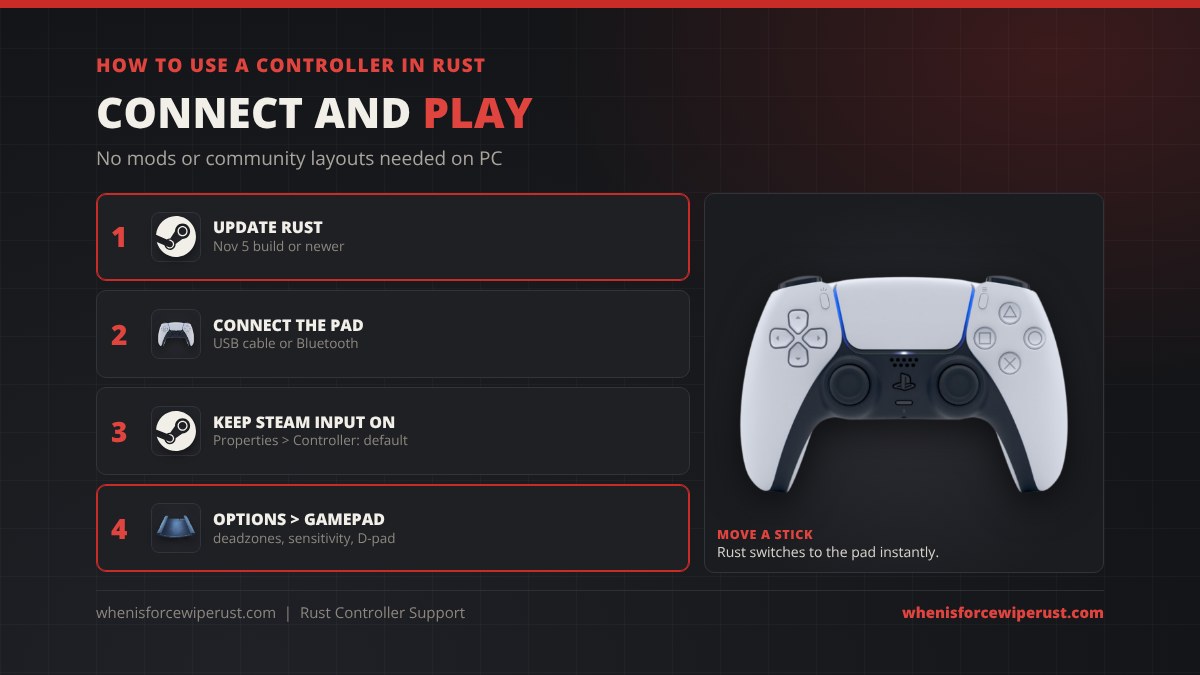
- Update Rust. Steam downloads the November 5 patch automatically. Controller support is only in builds from that day on.
- Connect your controller. Plug it in with a cable or pair it over Bluetooth before you launch the game.
- Leave Steam Input on. Rust’s gamepad support runs through Steam Input, so the game’s controller setting in Steam (Rust’s Properties, then Controller) should stay on the default or “Enable Steam Input”. If you turned Steam Input off for Rust in the past, turn it back on.
- Move a stick to switch. Rust swaps between mouse and controller on the fly. Moving a stick past a small threshold makes the pad the active device; touching the mouse or keyboard switches back.
- Tune it. Open Options and pick the gamepad section (it has its own gamepad icon) to change stick deadzones, sensitivity, the strafe angle and the inventory D-pad mode.
Which Controllers Work With Rust?
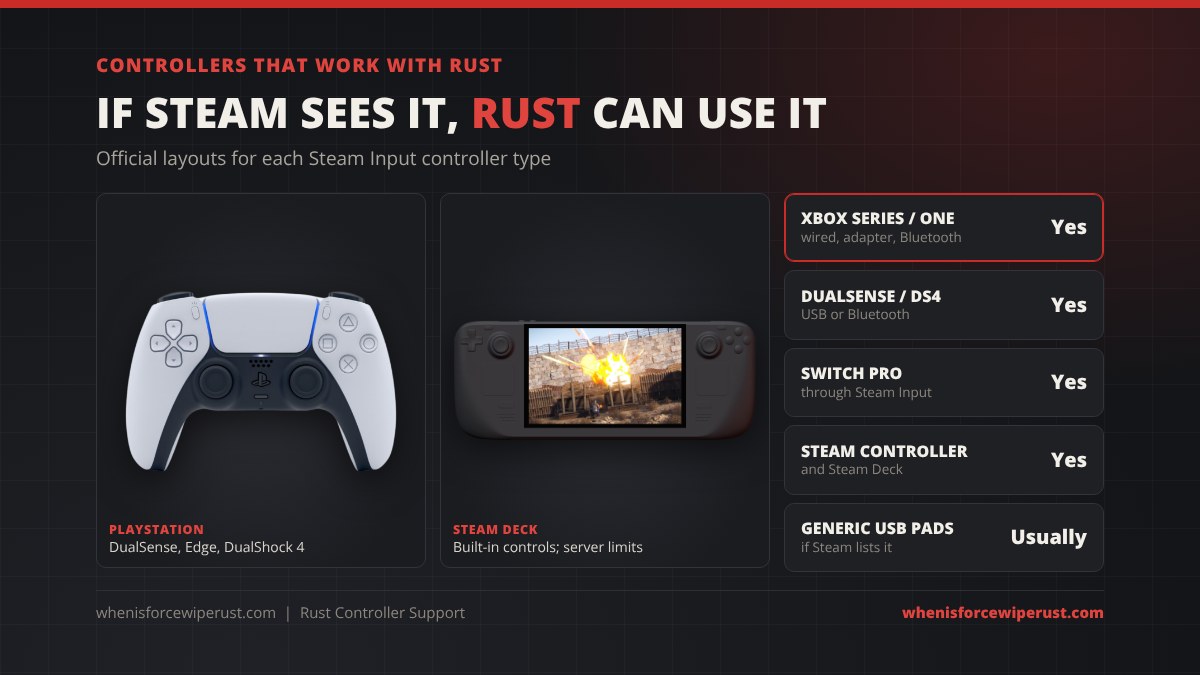
Because the support is built on Steam Input, Rust works with any controller Steam recognises. Facepunch ships its own layout file for each gamepad type Steam Input knows about; on October 12 they added files for six types that were missing, so the common pads all get a proper layout and the right on-screen prompts.
| Controller | Works? | Notes |
|---|---|---|
| Xbox Series X|S, Xbox One | Yes | Wired, wireless adapter or Bluetooth; Xbox prompts |
| PlayStation 5 DualSense / DualSense Edge | Yes | USB or Bluetooth; PlayStation prompts |
| PlayStation 4 DualShock 4 | Yes | USB or Bluetooth |
| Nintendo Switch Pro | Yes | Through Steam Input |
| Steam Controller / Steam Deck | Yes | Deck still has server limits, see below |
| Generic USB pads | Usually | Anything Steam Input lists as a gamepad |
The New Gamepad Options Screen
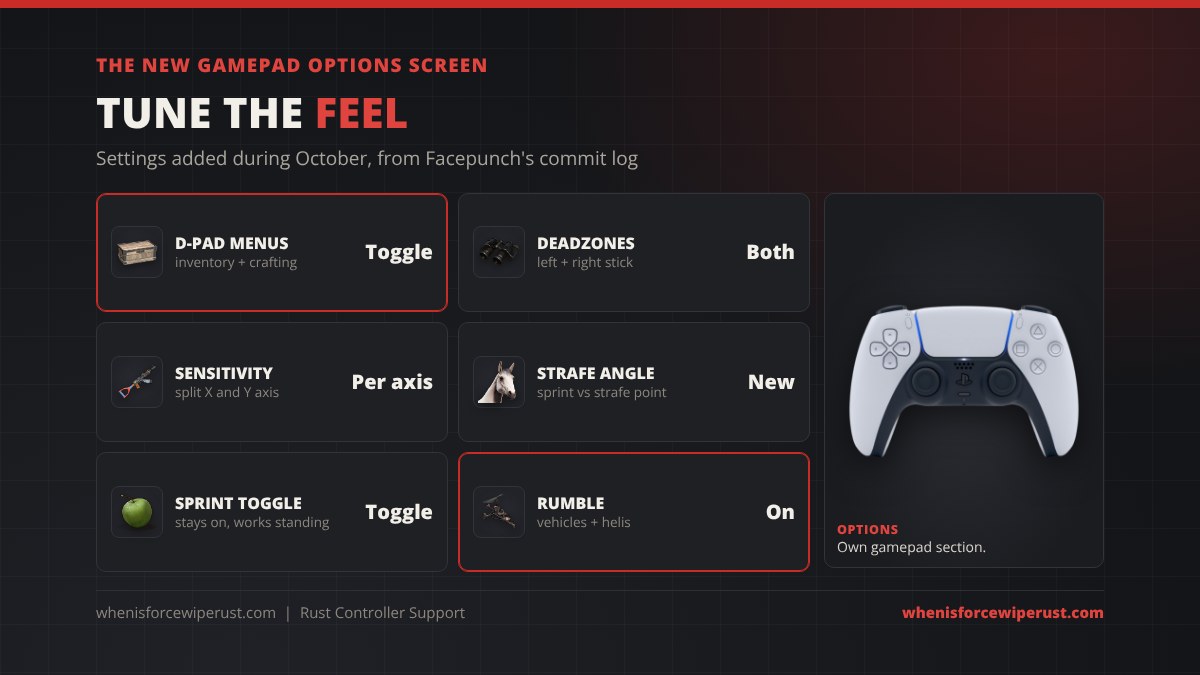
The devblog calls out a “new gamepad options screen” with “a bunch of other settings there too, to tweak the feel of the gamepad.” Facepunch’s commit log shows what went into it during October:
| Setting | What it does |
|---|---|
| D-pad inventory / crafting mode | Swaps the stick cursor for D-pad navigation in the inventory and crafting menus |
| Stick deadzones | Separate deadzones for the left and right sticks, to hide drift |
| Sensitivity per axis | Look speed split into horizontal and vertical |
| Strafe Angle | The point at which pushing the left stick sideways changes from sprinting to strafing |
| Sprint and crouch toggles | Run toggle stays on between sprints and works from standing still |
| Rumble | Vibration for vehicles and helicopters, only when the pad is in use |
Exact names in the menu can differ a little from the commit notes, since Facepunch renamed some cursor and inventory options on October 12 and again on October 22 to make them clearer. Fire and aim sit on a soft pull of the triggers as button actions, which (following Valve’s guidance) means you can rebind shooting and aiming to any button in Steam’s configurator.
Inventory, Crafting and the D-Pad Toggle
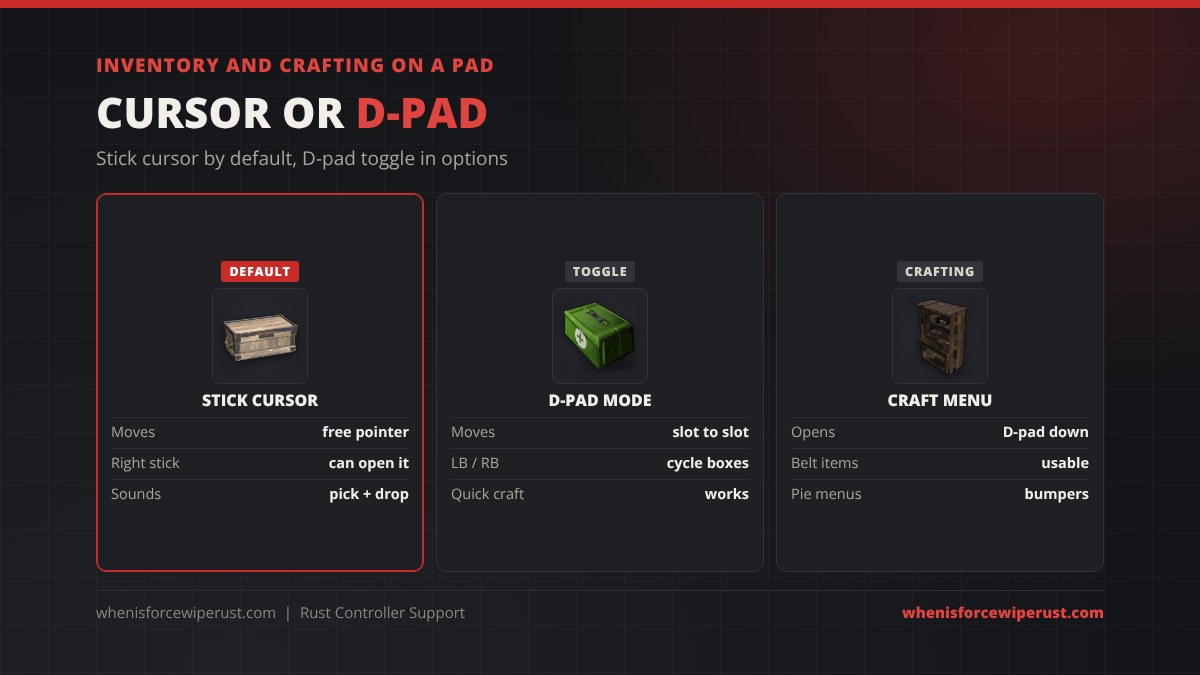
Menus are where controller support usually falls apart in PC survival games, and it is where Facepunch spent the most time. In the devblog’s words: “The inventory and crafting UI is handled via a stick cursor by default, but there’s a D-pad toggle in the new gamepad options screen, which is definitely worth trying out!”
- Stick cursor (default): a virtual mouse pointer you move with the stick, with pick and drop sounds when you move items. The right stick can now bring the cursor up too.
- D-pad mode: jumps between slots and containers instead of free aiming. The bumpers (LB/RB, L1/R1) cycle through open containers, so moving loot from a box to your inventory is quick.
- Crafting: opens from D-pad down in every control set. Quick craft works in D-pad mode as of the November 3 build.
- Belt items: food, meds and other usable items can be picked from the belt with the pad.
- Pie menus: the bumpers switch between pie menu sets, for building and other radial menus.
Crafting costs did not change for controller players, but the tech tree did. Every tech tree node now costs 1 Blueprint Fragment at Workbench Level 1 and the Engineering Workbench, 1 Page at Level 2 and 1 Book at Level 3, and the workbenches cost 50, 500 and 1,250 scrap. Our blueprint update guide has the full breakdown.
Map, Markers and Building on a Pad
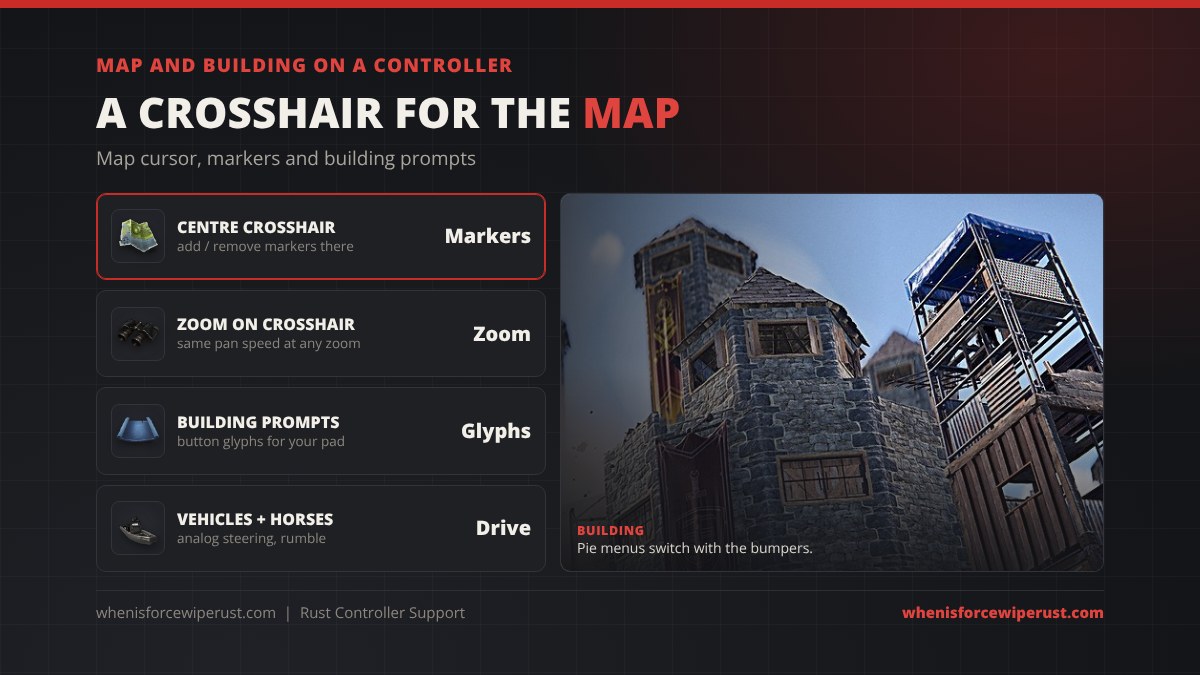
- Map cursor: the map has a fixed centre crosshair. You pan the map under it and add or remove markers right at the crosshair.
- Zoom: zooming centres on the crosshair, and panning moves at the same speed at every zoom level.
- Side icons: D-pad left and right move focus to the icons on the right side of the map screen, with tooltips.
- Building: building hints show the right button prompts for your pad, and the building pie menu works with the bumpers.
- Vehicles and horses: analog steering and throttle on the sticks and triggers, vehicle rumble, and tweaked horse canter controls.
What Doesn’t Work on Controller Yet?
Facepunch is upfront that this is a first release: “This first release brings a pretty solid experience already, but not every feature or functionality will have dedicated gamepad support yet. I’ll continue to add additional support over time, so if there’s something in particular you feel is missing, let us know!”
The devblog does not list the missing features. What that means in practice: core movement, fighting, looting, crafting, building, the map and vehicles are covered, but a few menus and less common screens may still need the mouse. Because Rust switches input devices the moment you touch the mouse, you can fix a stuck screen with a quick mouse click and go straight back to the pad.
Steam Deck, Console and Crossplay
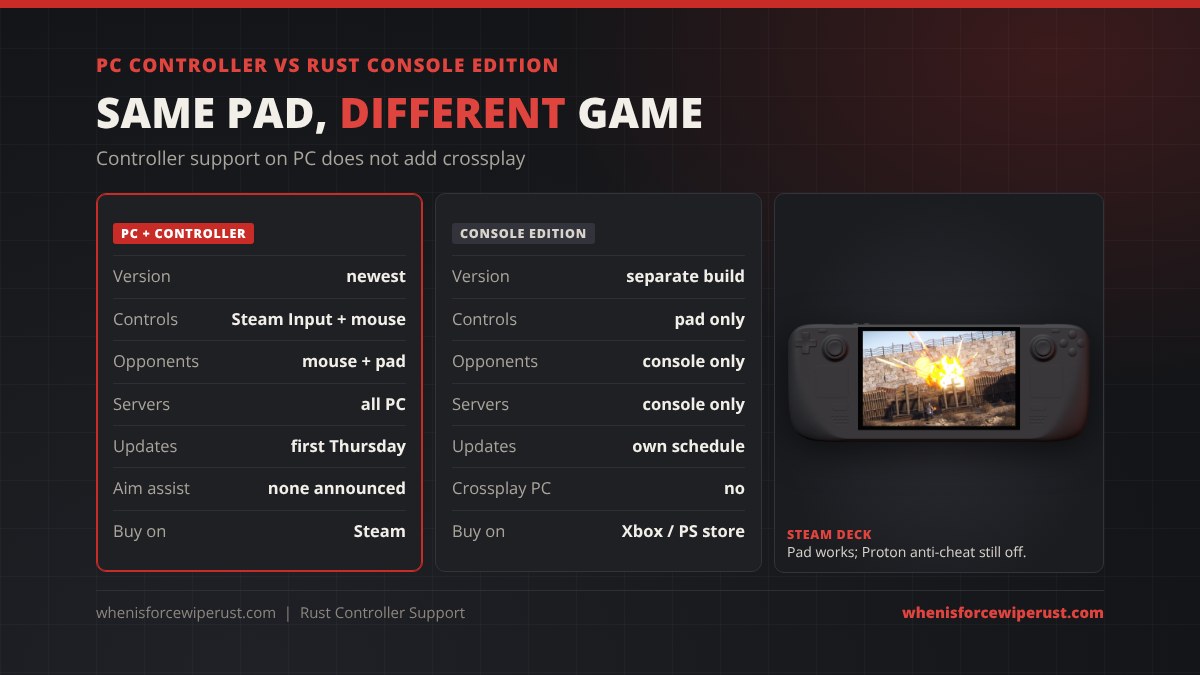
Steam Deck: the Deck’s built-in controls now work with Rust’s native gamepad support, which makes it far better on the Deck than before. But the big problem has not changed: Facepunch has not enabled Easy Anti-Cheat for Proton, so SteamOS still can’t join normal protected servers. The working routes are still Windows installed on the Deck or GeForce NOW, both covered in our Rust on Steam Deck and Mac guide.
Console: Rust Console Edition on Xbox and PlayStation is a separate game with its own servers, its own update schedule and a controller-first interface. PC controller support does not merge the two. If you want to play on a TV with friends who are on PlayStation or Xbox, you still need the console version, as our Rust Console Edition guide and Rust crossplay guide explain.
| PC Rust + controller | Rust Console Edition | |
|---|---|---|
| Game version | Newest, monthly updates | Separate build, behind PC |
| Controls | Steam Input, mouse at any time | Controller only, radial menus |
| Opponents | Mouse and controller players mixed | Console players only |
| Servers | Every PC server | Console servers only |
| Crossplay with the other | No | No |
Tips for Playing Rust on a Controller
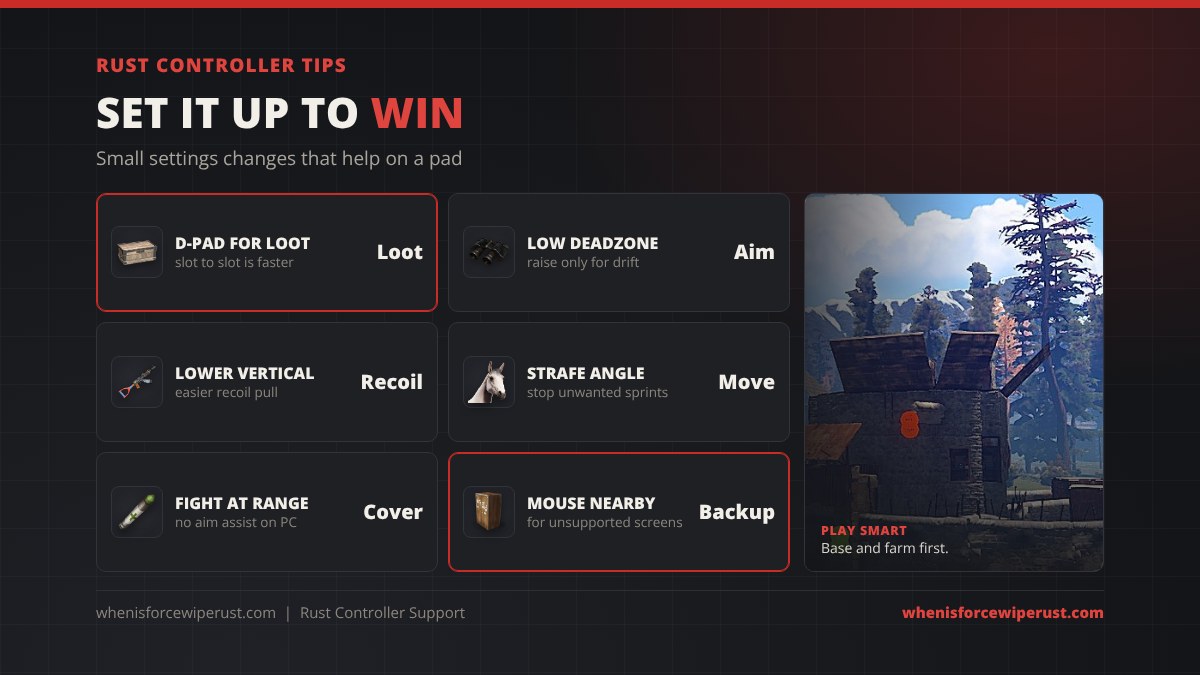
- Try D-pad mode for looting. Facepunch recommends it, and jumping slot to slot is faster than dragging a cursor when you are emptying a box under fire.
- Lower the deadzone if your pad is new. Small deadzones feel snappier for aiming. Raise it only if your view drifts on its own.
- Lower vertical sensitivity. With the split axis setting, a slower vertical speed makes recoil easier to pull down while keeping fast turns.
- Tune the strafe angle. If you keep sprinting when you want to strafe around a corner, change where the left stick switches.
- Pick your fights. Without aim assist, close-range fights against mouse players are hard. Shoot from range, use cover and play the base and the farm. Our Rust beginner’s guide covers how to survive the first hour.
- Get your FPS up. The same update cut memory use and raised frame rates in Facepunch’s tests; our best Rust settings and console commands squeeze out the rest.
Rust Controller Support FAQ
Does Rust have controller support on PC?
Yes. The Printed and Polished update on November 5, 2026 added official gamepad support to PC Rust through Steam Input. It works across the core gameplay and is on by default.
How do you play Rust with a controller on PC?
Update Rust, connect your controller and keep Steam Input on for the game. Move a stick and Rust switches to the pad. Open Options and the gamepad section to change deadzones, sensitivity and the D-pad menu mode.
Can you use a PS5 controller on Rust PC?
Yes. The DualSense, DualSense Edge and DualShock 4 work over USB or Bluetooth through Steam Input, with PlayStation button prompts in game.
Can you use an Xbox controller on Rust PC?
Yes. Xbox Series X|S and Xbox One controllers work through Steam Input, wired, with the wireless adapter or over Bluetooth.
What is the D-pad toggle in Rust?
It is an option in the new gamepad options screen. By default the inventory and crafting menus use a stick-controlled cursor; the D-pad toggle switches them to D-pad navigation between slots and containers instead.
Does Rust PC have aim assist on controller?
Facepunch has not announced any aim assist. The devblog and the game’s commit log do not mention it, and controller players share servers with mouse players.
Does controller support work on Steam Deck?
The Deck’s controls work with the new gamepad support, but Rust still does not support Proton anti-cheat, so SteamOS can’t join normal servers. Use Windows on the Deck or GeForce NOW.
Does PC controller support mean crossplay with console?
No. Rust Console Edition is still a separate game with separate servers. Controller support on PC only changes how you can play the PC version.
Is every feature supported on controller?
Not yet. Facepunch says the first release covers the core gameplay but not every feature has dedicated gamepad support, and more will be added over time.