
Rust is one of the hardest games on Steam to run well. It is a huge open map full of player-built bases, it leans hard on your CPU, and the graphics menu has more than 40 sliders with names like Max Shadow Lights, LOD Bias and Decor Quality that don’t explain themselves. Set them wrong and you get low FPS, stutter at big bases, or a smooth game where you can’t see the player shooting you.
This guide gives you the best Rust graphics settings for your PC, with full presets for low end, mid range and high end GPUs, explains which settings actually cost FPS, and walks through the fixes for stutter and FPS drops. If you want the F1 console commands, binds and Steam launch options, those live in our Rust console commands and launch options guide. Not sure your PC can run Rust at all? Check the Rust system requirements first, then come back here, and keep the Rust force wipe countdown open so your settings are ready before the next wipe.
- Biggest FPS Costs
- CPU or GPU Limited?
- Presets by PC
- Every Setting Explained
- DLSS, Reflex, AMD, Intel
- Settings to See Players
- FPS and Stutter Fixes
- Drivers and Windows
- Console, Mac, Steam Deck
- FAQ
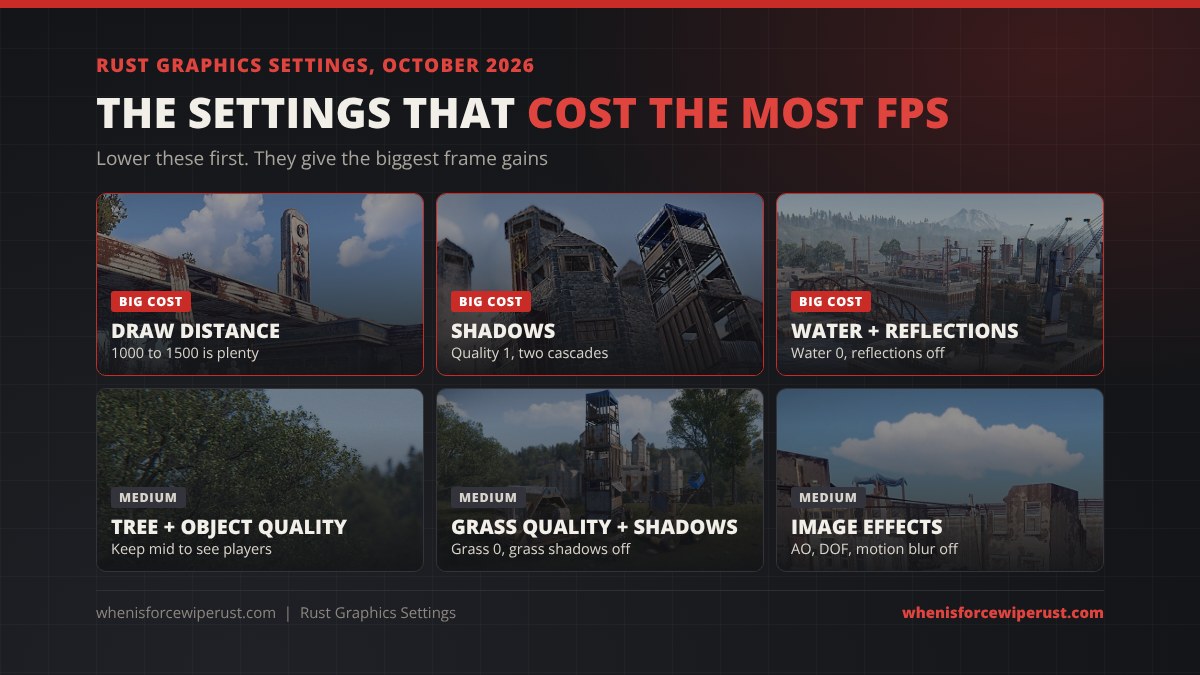
Which Rust Graphics Settings Cost the Most FPS
Not every slider matters. A handful of settings decide most of your frame rate, and many of the rest change almost nothing. Rust’s graphics menu is split into Graphics, Image Effects and an Experimental section. Here is roughly how much each group costs, and whether it loads your CPU or your GPU. The numbers vary by map, base size and how many players are near you, so treat them as a guide, not a promise.
| Setting | FPS cost | Loads | What to do |
|---|---|---|---|
| Draw Distance | High | CPU + GPU | 1000 to 1500. Going to max costs around 10% more for little gain. |
| Shadow Quality / Shadow Cascades / Shadow Distance | High | GPU + CPU | Quality 1, Two Cascades. Off on weak PCs. |
| Max Shadow Lights | Medium (at night) | GPU | 0. Lights from furnaces, lanterns and ceiling lights stop casting shadows. |
| Water Quality / Water Reflections | High near water | GPU | 0 and off. Raise only on high end GPUs. |
| Object Quality / LOD Bias | Medium to high | CPU | 100 to 150. Lower if bases and towns tank your FPS. |
| Tree Quality / Max Tree Meshes | Medium | CPU + GPU | Around 100 to 150. Too low makes trees pop in. |
| Grass Quality / Grass Shadows / Grass Displacement | Medium | GPU (displacement CPU) | Grass 0, shadows off (worth about 3 to 4%), displacement off. |
| Image Effects (AO, DOF, motion blur, bloom, sun shafts) | Medium | GPU | All off except Sharpen. |
| Anti-aliasing | Low to medium | GPU | SMAA or FXAA, or off with DLSS on. |
| Texture Quality | Low (needs VRAM) | VRAM | Full with 8 GB VRAM or more, Half with 4 to 6 GB. |
| Particle Quality / Decor Quality / Terrain Quality | Low | GPU | Low. Particles matter most during raids. |
Is Your Rust FPS CPU or GPU Limited?
This is the most important thing to know before you change anything, and most settings guides skip it. Rust does a lot of work on the CPU: every wall, door, box and player near you is an object the game has to track. That is why FPS drops at big bases, Outpost, Bandit Camp and other busy monuments even on fast graphics cards.
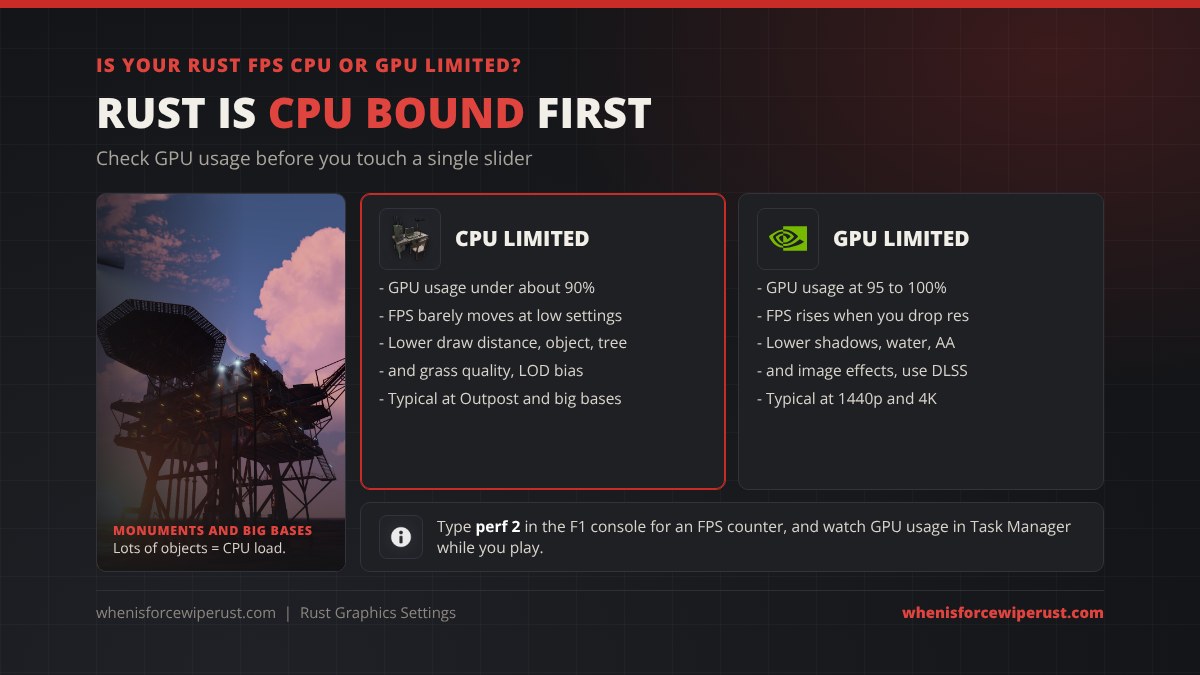
- Open the F1 console and type perf 2 to show an FPS counter in the corner.
- Open Task Manager (Ctrl + Shift + Esc), go to Performance > GPU, and play for a few minutes near a busy area.
- If GPU usage sits at 95 to 100%, you are GPU limited. Lower shadows, water, anti-aliasing and image effects, drop your resolution, or turn on DLSS.
- If GPU usage sits well under 90% and FPS is still low, you are CPU limited. Graphics sliders barely help. Lower draw distance, object quality, tree quality, max tree meshes and grass, cap your FPS, and close background apps.
Being CPU limited is normal in Rust. It is why a high end GPU on an older 4 core CPU often runs worse than a mid range GPU on a modern 6 or 8 core CPU. If you are planning an upgrade for Rust, a faster CPU and more RAM usually help more than a bigger GPU.
Best Rust Graphics Settings by PC (Low, Mid and High End)
Pick the column that matches your graphics card. The low end preset is for older GPUs and laptops and aims for a playable 60 FPS. The mid range preset is the competitive setup most PvP players use. The high end preset keeps Rust looking good while staying above 144 FPS on most servers. All three keep enemy players visible.

| Graphics setting | Low end | Mid range (competitive) | High end |
|---|---|---|---|
| Example GPUs | GTX 1060, GTX 1650, RX 580, laptops | RTX 3060, RTX 4060, RX 6600, Arc A750 | RTX 4070 and up, RX 7800 XT and up |
| Graphics Quality | Lowest | Low | Medium to high |
| Shader Level | 300 | 600 | 600 |
| Draw Distance | 1000 | 1500 | 2000 to 2500 |
| Shadow Quality | 0 | 1 | 2 |
| Shadow Cascades | No Cascades | Two Cascades | Four Cascades |
| Max Shadow Lights | 0 | 0 | 1 to 3 |
| Water Quality | 0 | 0 | 1 to 2 |
| Water Reflections | 0 (off) | 0 (off) | 1 |
| Texture Quality | Half | Full | Full |
| Anisotropic Filtering | 1 | 2 to 4 | 8 to 16 |
| Parallax Mapping | 0 | 0 | 1 |
| Object Quality | 80 to 100 | 100 to 150 | 150 to 200 |
| Tree Quality | 50 to 100 | 100 to 150 | 150 to 200 |
| Max Tree Meshes | 50 | 100 | 200 or more |
| Grass Quality | 0 | 0 | 0 to 50 |
| Grass Shadows / Grass Displacement | Off / off | Off / off | Off / on |
| Terrain Quality / Decor Quality | Low | Low | Medium |
| Particle Quality | 0 to 25 | 25 to 50 | 100 |
| Anti-aliasing | Off or FXAA | SMAA | SMAA, or off with DLSS |
| Ambient Occlusion | Off | Off | On if you like the look |
| Depth of Field / Motion Blur / Lens Dirt | Off | Off | Off |
| Bloom / Sun Shafts | Off | Off | Optional |
| Sharpen | On | On | On |
| NVIDIA DLSS | Off (GTX has no DLSS) | Quality at 1440p | Quality at 1440p and 4K |
| NVIDIA Reflex | On (GTX 900 and up) | On + Boost | On + Boost |
| VSync | Off | Off | Off |
| Max Frame Rate | Your monitor’s refresh rate | Your monitor’s refresh rate | Your monitor’s refresh rate |
Every Rust Graphics Setting Explained
If you want to tune things yourself instead of copying a preset, this is what the main settings actually do.
Draw Distance
How far the game renders the world. It is the single biggest FPS lever on most PCs, and it loads both the CPU and the GPU. Going all the way up costs around 10% FPS compared to the middle of the range, while 1500 to 2000 is only around 5% slower than 500. Players and bases are drawn separately, so a lower draw distance mostly hides far away terrain and islands, not enemies right in front of you.
Shadows
Shadow Quality sets how sharp shadows are, Shadow Cascades sets how many layers of shadow detail are drawn into the distance, and Max Shadow Lights sets how many lights (furnaces, lanterns, ceiling lights, campfires) cast their own shadows. Shadows are one of the biggest GPU costs in the game. Max Shadow Lights mostly hurts at night and inside lit bases, so 0 is the easy pick.
Water
Water Quality and Water Reflections barely matter inland but can cut a big chunk of FPS on the coast, at Harbor, Fishing Villages, Oil Rigs and on boats. Set both to 0 unless you have a high end GPU.
Object Quality, Tree Quality and LOD Bias
These control how detailed objects stay as they get further away. They are CPU heavy, which is why they matter so much at big bases. But do not set them to 0: very low values make distant players, bases and trees pop in late or disappear, which gets you killed. Around 100 to 150 is the sweet spot for PvP.
Grass
Grass Quality at 0 is both faster and better for PvP, because downed and crouching players in fields are much easier to see. Grass Shadows off is worth about 3 to 4% FPS. Grass Displacement (grass bending as you walk through it) is a small CPU cost that mostly matters on weaker processors.
Textures, Filtering and Parallax
Texture Quality barely touches FPS as long as you have enough video memory. Use Full with 8 GB of VRAM or more and Half with 4 to 6 GB. If you see hitching when you turn around, your VRAM is probably full. Anisotropic Filtering keeps ground textures sharp at an angle and is cheap on modern cards. Parallax Mapping adds fake depth to surfaces and is worth turning off on anything but high end GPUs.
Image Effects
Ambient occlusion, depth of field, motion blur, bloom, lens dirt and sun shafts all cost GPU time, and most make it harder to see. Turn them off. The exception is Sharpen, which costs almost nothing and makes the image clearer, especially with DLSS or a lower resolution.
Experimental Settings
Rust’s Experimental section has settings that can help but sometimes cause problems on certain PCs. Our console commands and best settings guide covers the experimental toggles players use, like the GC buffer slider. Change one at a time and keep note of what you changed.
DLSS, Reflex and AMD or Intel Graphics Cards
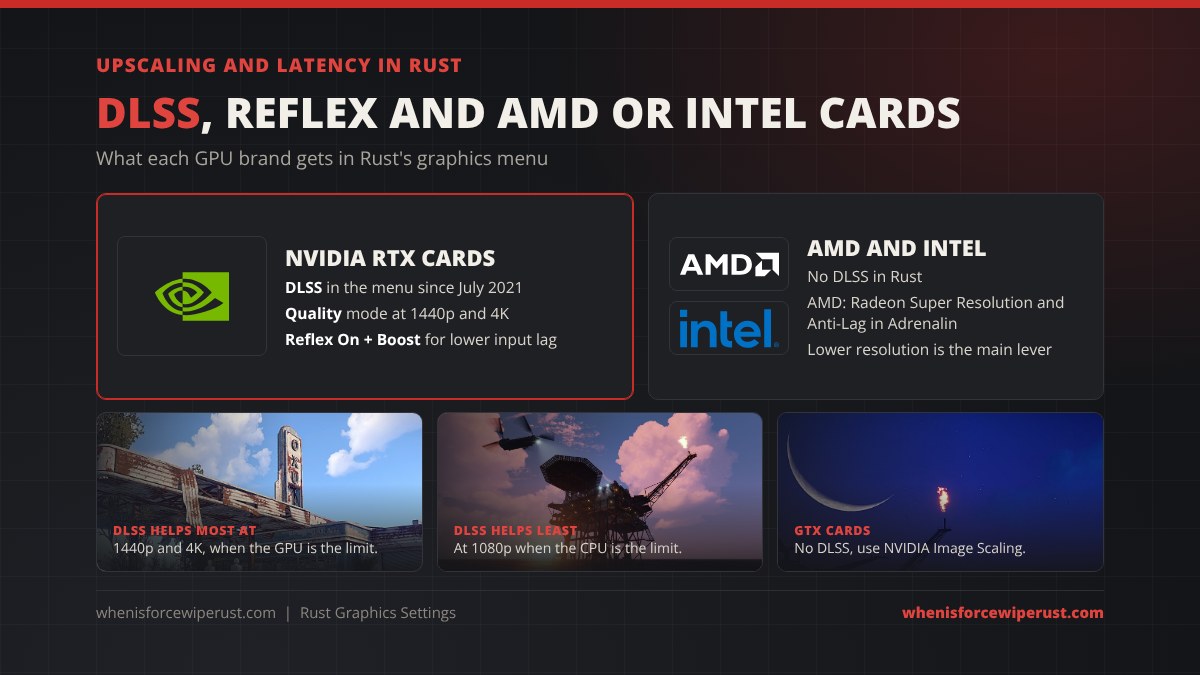
NVIDIA RTX cards (RTX 20 series and newer) get NVIDIA DLSS, which Rust added in July 2021. DLSS renders the game at a lower resolution and upscales it. NVIDIA measured up to 50% more FPS at 4K. Use the Quality mode at 1440p and 4K. At 1080p DLSS helps less and looks softer, and if you are CPU limited it barely helps at all, because the GPU was not the problem.
NVIDIA Reflex cuts input lag by stopping frames from queuing up. Set it to On + Boost. It works on GTX 900 series cards and newer, not only RTX.
AMD Radeon and Intel Arc cards don’t get DLSS in Rust. Your main lever is resolution and the GPU heavy settings above. AMD owners can turn on Radeon Super Resolution and Radeon Anti-Lag in AMD Software: Adrenalin Edition, which work on top of the game. Owners of older GTX cards can use NVIDIA Image Scaling from the NVIDIA Control Panel for the same kind of upscaling.
Rust Settings That Help You See Players
Turning every slider to the lowest value is the most common mistake. Some low settings make you faster but blind. These keep FPS high while making enemies easier to see.
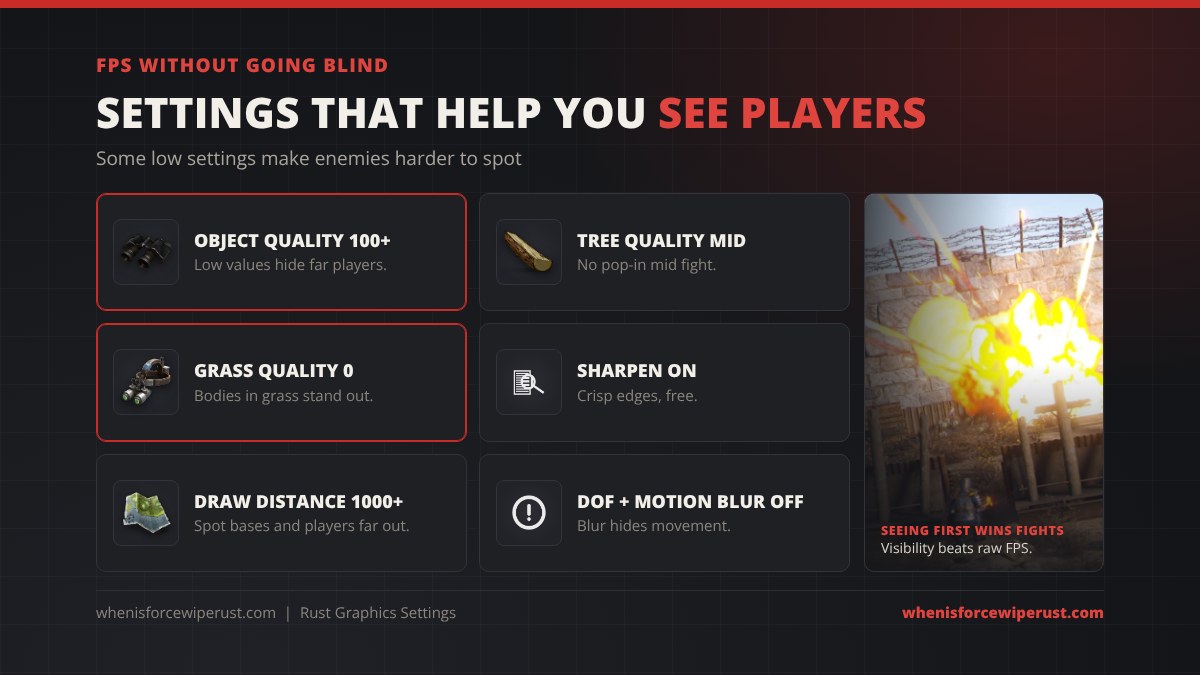
- Object Quality 100 or more, or players and deployables at range can pop in late.
- Tree Quality around the middle, so trees don’t change shape and pop in mid fight.
- Grass Quality 0, so crawling and downed players in fields stand out.
- Sharpen on for clean edges, free.
- Depth of field, motion blur and lens dirt off, because blur hides movement.
- Draw distance at least 1000 so you can still read bases and roofs at range.
Once your settings are done, set up your crosshair with our Rust crosshair codes guide and warm up with the Rust aim training guide.
Rust FPS Boost and Stutter Fixes
If your settings are right but Rust still runs badly, one of these is usually the cause.
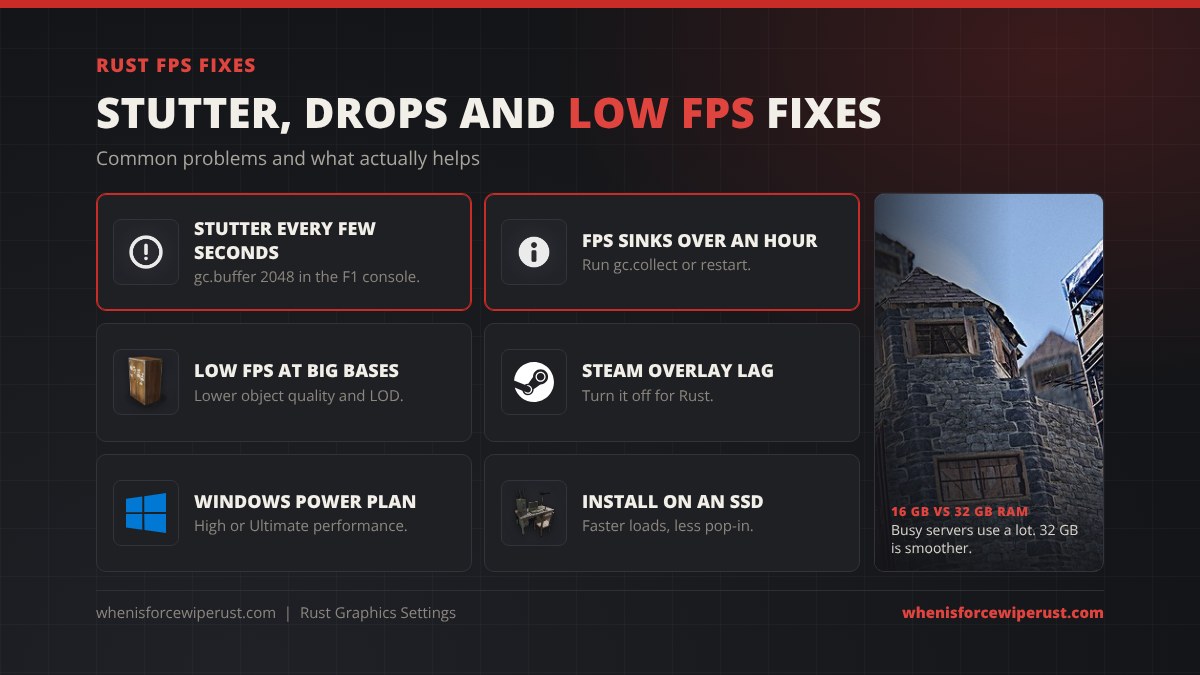
| Problem | Likely cause | Fix |
|---|---|---|
| Stutter or freezes every few seconds | Unity garbage collection | Type gc.buffer 2048 in the F1 console, and add it to your launch options so it sticks. See our Rust FPS commands. |
| FPS slowly drops over an hour or two | Memory filling up | Run gc.collect in the F1 console, or restart the game every few hours. |
| Low FPS only at big bases and monuments | CPU limit | Lower Object Quality, Tree Quality, Max Tree Meshes and Draw Distance. Graphics sliders won’t fix this. |
| Hitching when you turn around | VRAM full | Drop Texture Quality to Half. |
| Long loads and textures popping in | Hard drive | Move Rust to an SSD in Steam (Properties, Installed Files, Move install folder). |
| Stutter on full servers with 16 GB RAM | Not enough RAM | Close Chrome and other apps. Busy servers can push Rust past 14 GB, so 32 GB is much smoother. |
| FPS fine, but the game feels laggy | High ping, not FPS | Play on a server close to you. Use the region filter in our Rust server browser. |
| FPS dropped after an update | New content, old driver | Update your GPU driver and verify the game files in Steam. |
| Laptop gets low FPS | Running on the integrated GPU or on battery | Plug it in and set Rust to the dedicated GPU in Windows graphics settings. |
Drivers, Windows and Launch Options
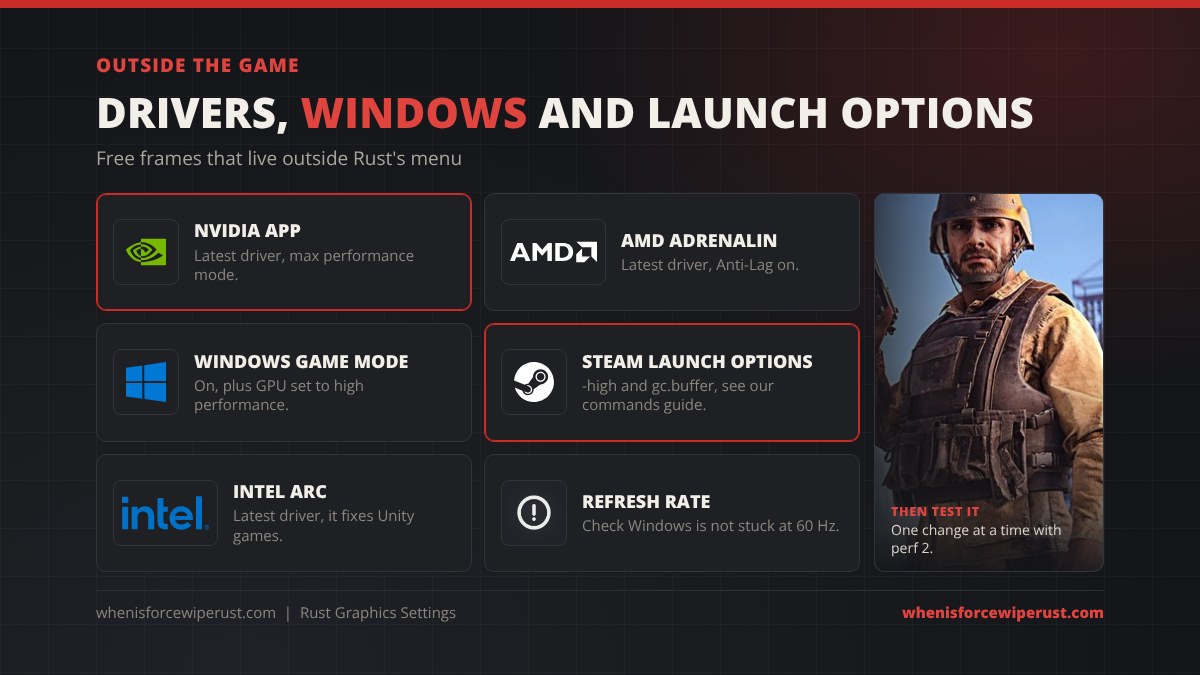
- Update your GPU driver with the NVIDIA app, AMD Software: Adrenalin Edition or the Intel graphics software. New Rust updates often come with driver fixes.
- Windows: turn on Game Mode, add Rust under Graphics settings with the High performance GPU, and use a high performance power plan.
- Refresh rate: check that your monitor is actually running at 144 Hz or more in Windows display settings. Many players are stuck at 60 Hz without knowing it.
- Steam overlay: turn it off for Rust if you don’t use it.
- Launch options: a few Steam launch options still help, like -high and +gc.buffer 2048. The full list with copy buttons, plus which ones are placebo, is in our Rust launch options guide.
Rust Console Edition, Mac and Steam Deck
Rust Console Edition on PlayStation 5 and Xbox Series X|S has a much shorter settings menu and no F1 console, so none of the PC settings or commands here apply. See our Rust Console Edition guide for what is different there.
Steam Deck and Linux: Rust’s Linux version was dropped, and its Easy Anti-Cheat servers don’t let Proton players in, so the Steam Deck can’t join normal servers. GeForce NOW is the workaround: Rust runs on NVIDIA’s servers and streams to you, so your own hardware barely matters. See our Rust on Steam Deck and Mac guide for Mac settings and Steam Deck workarounds.
Rust Graphics Settings FAQ
What are the best Rust graphics settings for FPS?
Lower draw distance to 1000 to 1500, shadow quality to 0 or 1 with two cascades, max shadow lights to 0, water quality and reflections to 0, grass quality to 0 with grass shadows off, and turn off ambient occlusion, depth of field and motion blur. Keep object and tree quality around 100 to 150 so you can still see players, and turn Sharpen on.
Why is my FPS so low in Rust with a good graphics card?
Rust is usually limited by the CPU, not the GPU. Big bases and busy monuments have thousands of objects the CPU has to handle. If your GPU usage is well under 90%, lowering graphics settings will not help much. Lower draw distance and object quality instead, close background apps, and make sure you have 16 GB of RAM at the very least, ideally 32 GB.
How do I fix stuttering in Rust?
Most Rust stutter comes from Unity garbage collection. Type gc.buffer 2048 in the F1 console and add +gc.buffer 2048 to your Steam launch options so it applies every time. If FPS slowly drops during a long session, run gc.collect or restart. Hitching when you turn around usually means your VRAM is full, so lower texture quality.
Should I use DLSS in Rust?
Yes on an RTX card at 1440p or 4K, using the Quality mode. DLSS gives the biggest gains when your GPU is the limit. At 1080p, or when you are CPU limited at big bases, it helps much less. Turn Sharpen on if DLSS looks soft.
Does Rust have FSR for AMD graphics cards?
Rust’s own menu offers NVIDIA DLSS but not AMD FSR. AMD owners can use Radeon Super Resolution and Radeon Anti-Lag from AMD Software: Adrenalin Edition, or simply lower the resolution and the GPU heavy settings like shadows and water.
Is 16 GB of RAM enough for Rust?
16 GB runs Rust, but full servers and big bases can push the game past 14 GB, which leaves almost nothing for Windows and Discord and causes stutter. 32 GB is much smoother and is what we recommend for Rust in 2026.
Which Rust settings make enemies easier to see?
Grass quality at 0, object quality at 100 or more, tree quality around the middle, Sharpen on, and depth of field and motion blur off. Don’t set object quality to 0, because distant players can pop in late.
What is the best FPS limit for Rust?
Set Max Frame Rate to your monitor’s refresh rate, for example 144, 165 or 240, and turn VSync off. You can also set it in the F1 console with fps.limit. Capping keeps frame times steadier than running uncapped.
Can you change graphics settings in Rust Console Edition?
Only a few. Rust Console Edition has a short settings menu and no F1 console, so the PC graphics settings, console commands and launch options in this guide don’t apply on PlayStation or Xbox.
More Rust Guides
- When is force wipe in Rust: live countdown
- Rust console commands, binds and launch options
- Rust system requirements: can you run it?
- Full Rust console commands list
- Rust crosshair codes
- Rust server browser
- Best monitor arms for a Rust setup
- Best wireless gaming mouse for Rust and FPS
- Best gaming microphones for streaming and Discord
- Best gaming earbuds for PC, PS5 and Xbox
- Best gaming desks, standing and L-shaped
- Best gaming mouse pads, cloth, hard and glass
With these settings in place, the only thing left is timing. Fresh maps are where good FPS pays off most, so check the next Rust force wipe and be loaded in when the servers come back up.